By, José C. Nieves Pérez
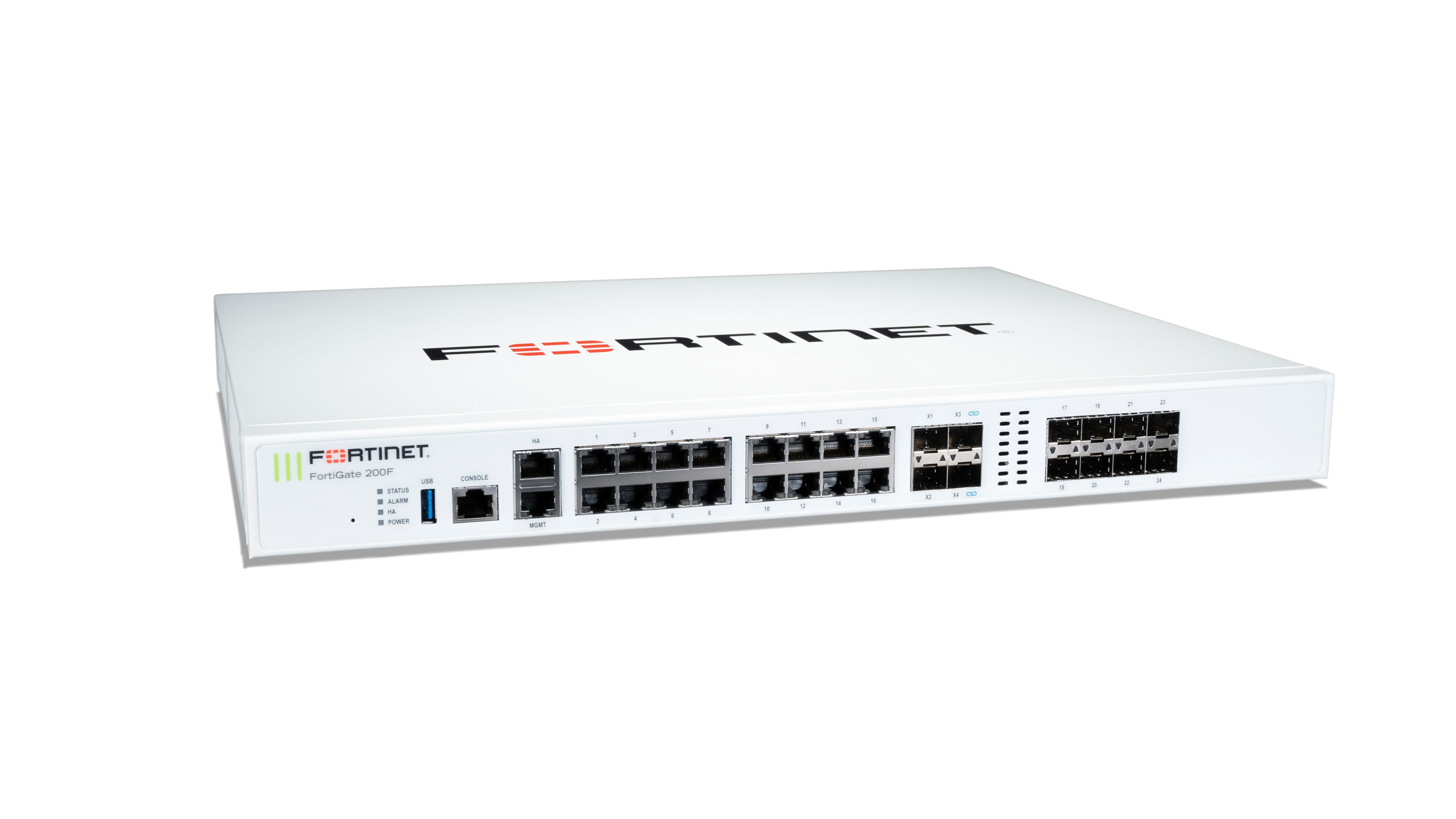
To block all internet traffic except Microsoft Services on a Fortigate Firewall, you can create a firewall policy that allows traffic only to Microsoft Services and block all other traffic. Here are the steps to achieve this:
- Create an address object for Microsoft Services IP addresses that you want to allow. You can find the list of Microsoft Services IP addresses from the following URL: https://docs.microsoft.com/en-us/microsoft-365/enterprise/urls-and-ip-address-ranges?view=o365-worldwide
- Create a firewall policy that allows traffic only to the Microsoft Services IP addresses. To create a firewall policy, go to Policy & Objects > IPv4 Policy and click on Create New.
- In the General Settings tab, give a name to the policy, select the Incoming or Outgoing Interface, and select the IPv4 address object for Microsoft Services in the Source field.
- In the Destination field, select the Any option to allow traffic to all destinations.
- In the Service field, select the TCP and UDP protocols and add the ports required by the Microsoft Services you want to allow. You can find the list of required ports for Microsoft Services from the following URL: https://docs.microsoft.com/en-us/microsoft-365/enterprise/office-365-ip-web-service?view=o365-worldwide
- In the Action field, select Accept to allow traffic to the Microsoft Services and in the Log field, select All Sessions to log all the traffic.
- Create a second firewall policy that blocks all traffic not going to the Microsoft Services. To create this policy, go to Policy & Objects > IPv4 Policy and click on Create New.
- In the General Settings tab, give a name to the policy, select the Incoming or Outgoing Interface, and select the Any option in the Source field.
- In the Destination field, select the Address Object for Microsoft Services that you created in step 1.
- In the Service field, select the TCP and UDP protocols and add the ports required by the Microsoft Services you want to allow.
- In the Action field, select Deny to block all traffic not going to the Microsoft Services and in the Log field, select All Sessions to log all the traffic.
- Arrange the firewall policies so that the policy that allows traffic to the Microsoft Services is above the policy that blocks all other traffic.
 A la grande le puse Cuca